Income adjustment deduction, final confirmation and submission
19. Income adjustment deduction
20. Data input confirmation
21. Print forms
Confirmation cover sheet for year end tax adjustment documents
22. Evidence submission
Year end tax summary
Notes after completion of the wizard
Change after submitting the Wizard
Wizard screen after the last access date
19. Income adjustment deduction
The contents of the wizard varies depending on income tax bracket and income. Follow the instructions on the screen to check if you are subject to income adjustment deduction.
〈Notes〉
Even if more than one person is listed, only one person is eligible.
Even if you have a dependent under 23 in your family who is not tax-deductible under your declaration, you may still declare that dependent for the income adjustment deduction.(For more information, view "See details").
■Those who have no income adjustment deductions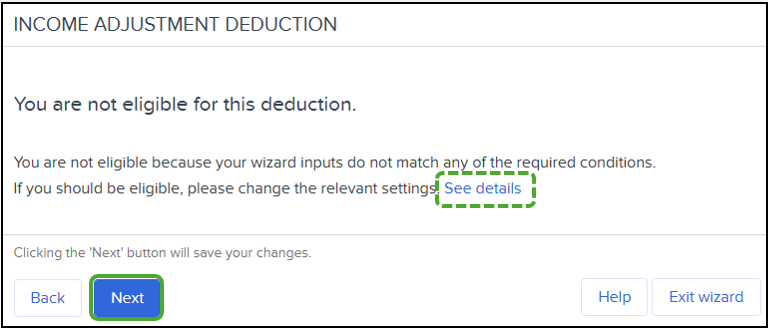
Click "Next" because there is no income adjustment deduction eligible.
Notes: If you want to see why you are or are not a subject, click on "See details" and see what is displayed. If there is a subject, return to the wizard from the link in the blue area and change the contents (see the figure below).
■Those who have income adjustment deduction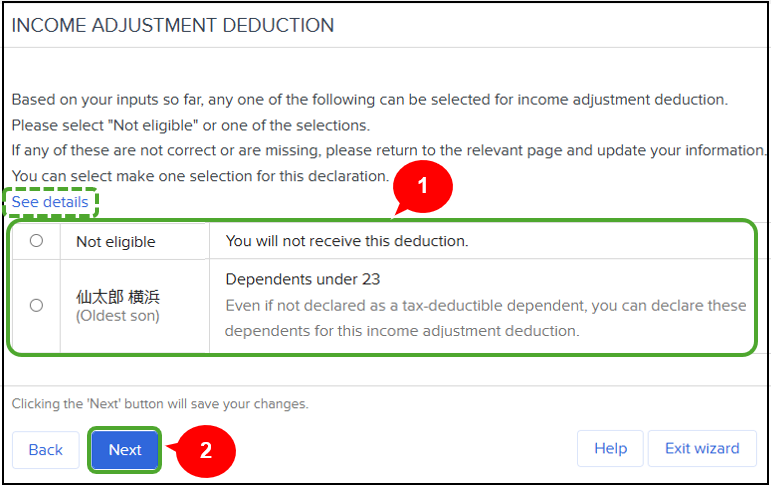
① If there is a person who is eligible for the income adjustment deduction, select "Not eligible" or select one of selections.
Note: If the income of the selected subject is 0 yen, the following message will be displayed.
If 0 yen is incorrect, please return to the "Dependents information" menu and enter the correct income/income from the Edit screen for that subject to file. Then file again on this screen.
If 0 yen is correct, click "OK.
② Click "Next."
Notes: If you want to see why you are or are not a subject, click on "See details" and see what is displayed. If there is a subject, return to the wizard from the link in the blue area and change the contents (see the figure below).
Note: If you click "Next" without selecting any of the income adjustment deductions listed, the message shown below will appear. Please be sure to select one of them.
20. Data input confirmation
Finalize your filing details regarding the year end tax adjustment.
This step is to confirm the contents entered are correct. Review all information and put a check mark in “I confirm that all the above information is true and correct” then click “Submit tax declaration.”
If you need to make any changes, click on the appropriate category text in blue.
■ “Dependent of the same household from 19-23 years old” under the “Dependent information this year”
If the family member is 19 years of age or older but under 23 years of age, this field will appear.
If that family member shares a household with you and their taxable total income for the year is over 580,000 yen but not exceeding 1,230,000 yen (or over 1,230,000 yen but not exceeding 1,880,000 yen if the income is salary income only), the “Dependent of the same household from 19-23 years old” field will be set to “Yes”.
(If the total income of a family member is 580,000 yen or less, they are not eligible for the Deduction of dependent for the same household but are eligible for the Deduction for dependents.)
*This category of family members also includes foster children who have been entrusted for care under the provisions of the Child Welfare Act.
<Cases where non-residents qualify for the Deduction of dependent for the same household>
He (she) qualifies as an eligible individual if both of the following conditions apply:
・He (she) is a dependent within the eligible age range and is a nonresident who departed Japan during the current year (or arrived in Japan during the current year and returned home by year-end, etc.).
・The total amount of income he (she) earned during their stay in Japan this year is over ¥580,000 but not exceeding ¥1,230,000 (or, if their income consists only of salary income, over ¥1,230,000 but not exceeding ¥1,880,000). (If the total income of a family member is 580,000 yen or less, they are not eligible for the Deduction of dependent for the same household but are eligible for the Deduction for dependents.)
■Income adjustment deduction
If you have marked "19. Income adjustment deduction" as your deduction, the reason and the name will be displayed, as shown in the example above.
21. Print forms
This step is only displayed after you click on the “Submit tax declaration” in the previous step.
Click on “Download evidence cover page” and print out the “Confirmation cover sheet for year end tax adjustment documents.”
When you download the evidence cover page(s), a mailing label form will also be output.
There will be no download link showing in the screen for those who do not require the evidence cover page.
Click on “Next” and proceed to “22. Evidence submission.”
Confirmation cover sheet for year end tax adjustment documents
*See only if you see the "Download evidence cover page" button.
When you download the evidence cover page(s), a mailing label form will also be output.
Please confirm the information on the screen and on the mailing label form.
Then, staple all required documents to the evidence cover page(s) and mail them.
■Example of with declaration of deductions for insurance premiums, etc., and without declaration of total housing loan special deduction
When you click “Download evidence cover page,” a total of two pages will be output.
The address label to be affixed to the mailing envelope is output on the first page, and the evidence cover page is output on the second page.
■Example of with declaration of deductions for insurance premiums, etc., and declaration of total housing loan special deduction
When you click “Download evidence cover page,” a total of three pages will be output.
The first page will output the address label to affix to the mailing envelope.
Page 2 will output the evidence cover page deduction for insurance premiums, etc. and Page 3 will output the evidence cover page deduction related to housing loans.
Each certificate of deduction, etc. for insurance premiums and the certificate, housing loan form, for loan certificate should be affixed to the respective applicable cover page.
Click “Next.” Go to “22. Evidence submission.”
22. Evidence submission
On this screen, you select whether each document has been sent to the vendor.
If you do not need to submit document(s), only a confirmation message will be displayed.
■Those who need to submit documents
■Those who do not need to submit documents
■Those who need to submit documents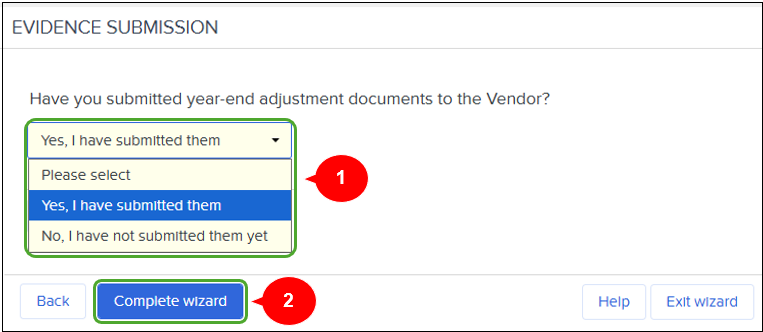
① Select the applicable option.
② Click “Complete wizard.” The “Year end tax summary” screen will appear.
■Those who do not need to submit documents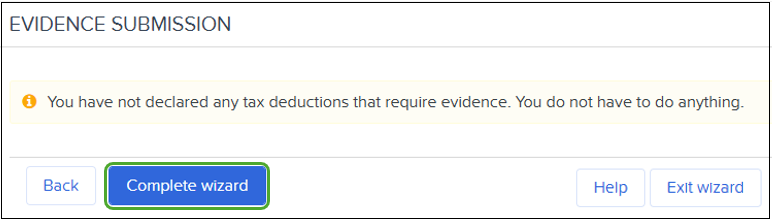
“You have not declared any tax deductions that require evidence. You do not have to do anything.” is displayed.
Click “Complete wizard.” The “Year end tax summary” screen will appear.
Year end tax summary
You can check your status on this screen, such as when you completed the YTA wizard or when you sent your document(s).
The differences in the content displayed in the “Evidence submitted” field are as follows:
Your Year-End Tax Adjustment wizard is now complete! You may close this screen.
Notes after completion of the wizard
When referring to each screen after completion, do not click the "Next" button unless the content has changed.
If you click the "Next" button even if there is no change in the contents, you have saved the screen, and you will need to go through "20. Data input confirmation" again.
In this case, please check the "I confirm that all the above information is true and correct." checkbox at the end of the confirmation screen and click the "Submit tax declaration" button.
Change after submitting the Wizard
Even after the completion of the wizard declaration, you can change your declaration until the end of the wizard's usage period.
If you change the details of your declaration after it has been completed, the above message will appear at the top of the screen.
① If the changed screen (e.g., "Dependents information") requires submit changes, please submit changes. If the change does not require submit changes, please go to ②.
② Complete all the steps above "Confirmation" in the left frame.
*Steps that are not checked green are not completed.
③ Go to "Data input confirmation" and "Print forms".
If there are any additions or changes to the documents to be sent, please also complete the “Evidence submission” screen again.
Wizard screen after the last access date
You are not be able to edit your registration because the access end date has passed.
However, you can check the contents of your registration.
To return to the previous page, "⑤Confirmation of total housing loan special deduction (Direct)", click here.
Click here for the Japanese version of this manual.